Please work through these checks in order. After each step, try the file or action again.
Compatibility: MediaSeal File System requires a Mac with Apple silicon (such as an M-series chip) and macOS 26 (Tahoe) or later. To check, open the Apple menu and choose About This Mac. Look for Chip and macOS. If your Mac does not meet both requirements, it is not supported.
Troubleshooting Steps
1. Check the Installation
- Open the MediaSeal File System app. If it does not open, check the installer.
- Open the downloaded installer. If it is inside a compressed download, open that download first.
- Follow the installer screens and agree to the license terms when asked.
- Install on Macintosh HD. The installer does not allow a different location.
- Enter your Mac password when asked. Wait for the message that installation is complete.
- In the app menu, choose About MediaSeal File System and check the version number.
2. Allow the Required Mac Permissions
MediaSeal needs these permissions to work. Open the Finish setting up MediaSeal window and do the steps in order. After changing a setting, return to this window and click Check again if asked.
- Allow background activity: Find MediaSeal File System under App Background Activity and turn it on.
- Allow file access: Under Privacy & Security > Full Disk Access, turn on MediaSeal File System.
- Allow the MediaSealFS extension: Open Login Items & Extensions > File System Extensions. Click the information button, find MediaSeal File System, and turn it on.
- When the setup window says setup is complete, click Quit and Relaunch. This closes and reopens the app so the changes take effect.
3. Check That the MediaSeal Volume Is Ready
The MediaSeal Volume is where you open files. Mapped Directories are regular folders on your Mac that MediaSeal connects to the volume.
- In the MediaSeal File System window, look for the volume status. Active means it is ready. If it says Inactive, click Activate.
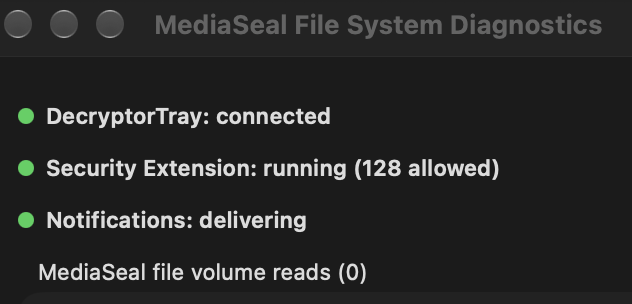
- Look for DecryptorTray: connected. DecryptorTray is the MediaSeal service the File System app connects to.
- If it is not connected, click Refresh. If it still is not connected, make sure MediaSeal Decryptor is open and its services show Running in the Test report. See the Decryptor troubleshooting checklist.
- Check that your volume and folders appear in the window.
4. Check a File That Is Missing or Will Not Open
- Make sure the folder containing the file appears under Mapped Directories.
- Make sure the file is inside that folder and the MediaSeal Volume is Active.
- Open the file from the MediaSeal Volume. Do not open it from the original folder in Finder; access from that folder is blocked.
- To add a folder, first click Deactivate. Open Settings > Mapped Folders, click + Add Folder, choose your folder, and click Map Folder. Then click Activate.
5. Check Notifications
- Open Settings > Notifications and turn notifications on. Alerts explain when an app is blocked or a file is opened from the wrong place.
- In Diagnostics, check Notifications. Delivering means alerts can appear. Silent means alert sound is muted.
6. Check Diagnostics
If the problem continues, open Diagnostics. You can take a screenshot of this page to send to Support.
- DecryptorTray should say Connected.
- Security Extension should say running.
- Check whether Notifications says delivering or silent.
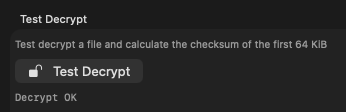
- Use Test Decrypt to test decrypting a file. You should get prompted to enter the file password if you have access to it.
When Contacting Support
If the problem is still there, see What should I send MediaSeal Support? for the information to include.