Administrator Onboarding in MediaSeal App
Administrator Onboarding is a feature in the MediaSeal App that allows administrators to manually onboard users who are unable to accept their invitation to join the studio. Follow these simple steps to complete the Administrator Onboarding process:
Steps for Administrator Onboarding:
- Access the Decryptor Users Tab
- Open the MediaSeal App and navigate to the Decryptor Users tab on the left-hand menu.
- Select Pending.
- Locate the User
- In the Decryptor Users Pending list, find the user who needs to be onboarded manually. If the user does not appear in the list, invite them using Invite Users.
- Click the magnifying glass icon next to the selected user.
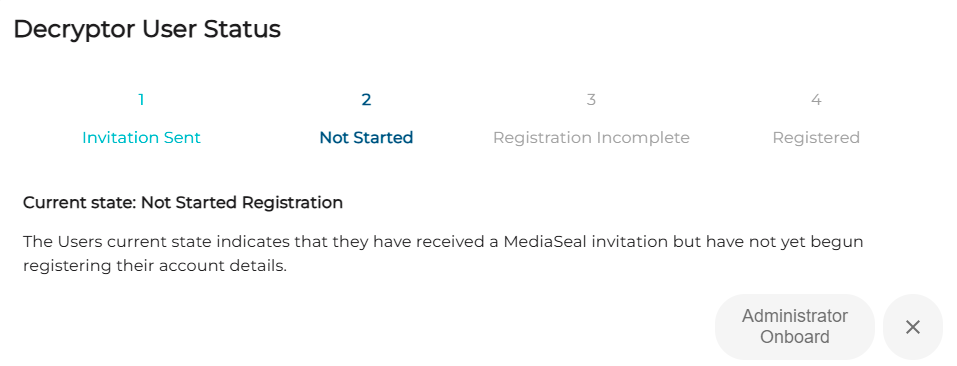
- This window will also show the user's current onboarding status.
- Select Administrator Onboard Option
- If the user is eligible for Administrator Onboarding, the Administrator Onboard option will appear. Users are eligible if they have received an invite but have not yet accepted it to join the server. This option allows administrators to manually force user onboarding.
- Select Confirm
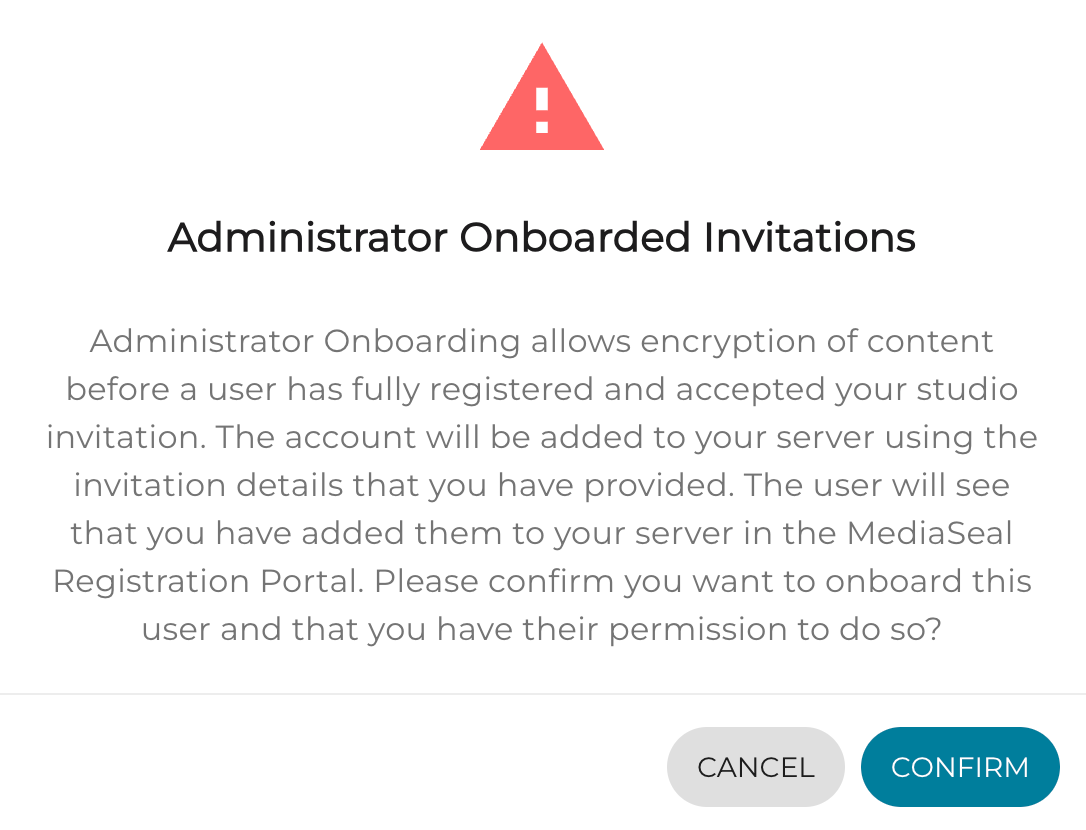
- Once Confirm has been selected, the user should appear in the Decryptor Users, ready to be added to groups and jobs and receive encrypted files.
- If the user is eligible for Administrator Onboarding, the Administrator Onboard option will appear. Users are eligible if they have received an invite but have not yet accepted it to join the server. This option allows administrators to manually force user onboarding.