MediaSeal supports authentication through an external identity provider using OpenID Connect (OIDC).
Before you begin
Ensure that you have:
- Administrator access to the MediaSeal server.
- Administrator access to your identity provider.
- An OIDC client ID and client secret.
- The provider URL for your identity provider.
- Permission to configure callback URIs in the identity provider.
Configure OIDC in MediaSeal
Sign in to your MediaSeal server either via a web browser or via the MediaSeal App and open Settings.
Under Configure Identity Provider, select Add +.
Select the OIDC tab.
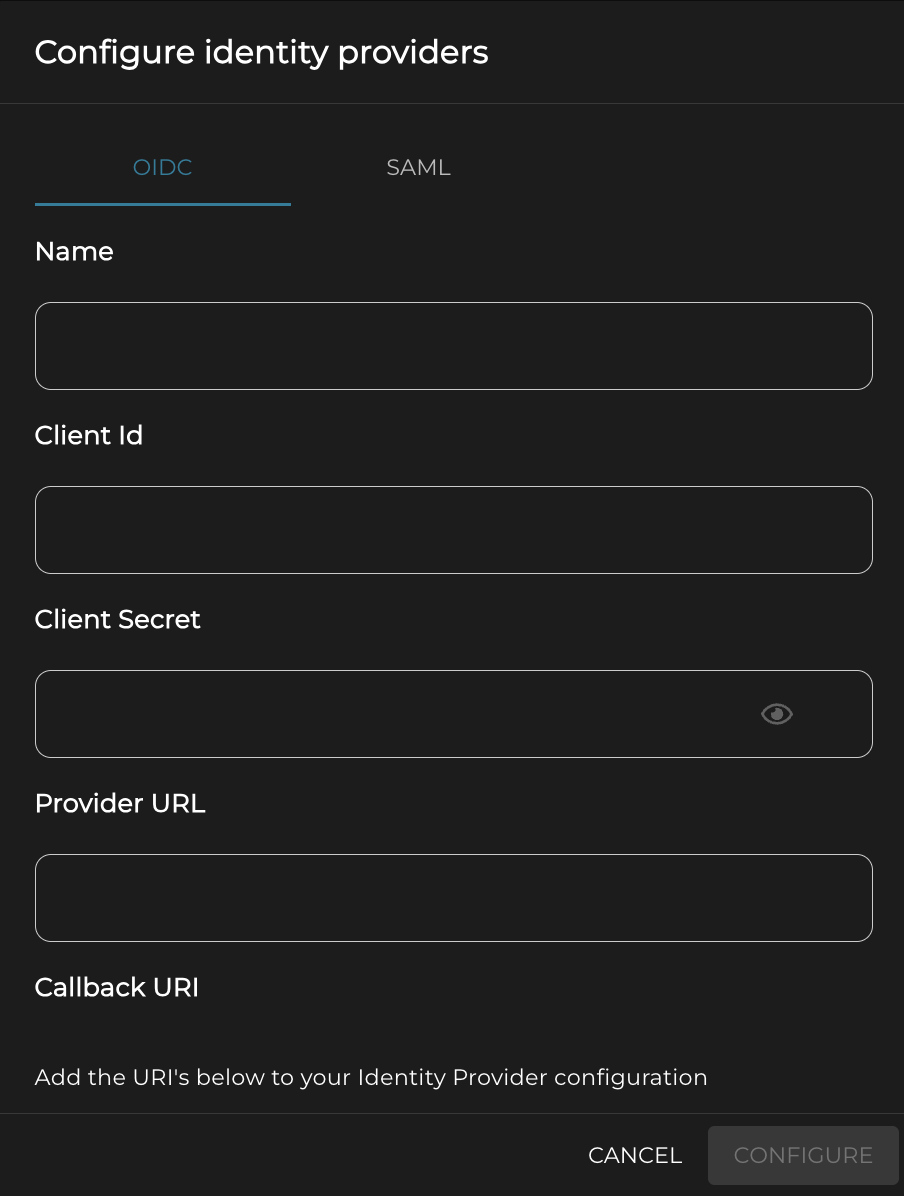
In the Name field, enter a recognisable name for the identity provider.
Enter the Client ID supplied by your identity provider.
Enter the Client Secret supplied by your identity provider.
The client secret must contain at least eight characters.
Enter the identity provider's Provider URL.
Under Callback URI, copy each URI displayed by MediaSeal.
Add the copied callback URIs to the OIDC application configuration in your identity provider.
Confirm that the client ID, client secret, provider URL and callback URIs match in both systems.
Select Configure to save the identity provider.
Verify the configuration
After saving the configuration:
Confirm that the provider appears under Identity Providers.
Attempt to sign in using an account managed by the identity provider.
Confirm that authentication redirects to the identity provider and returns the user to MediaSeal successfully.
If authentication fails, check the client credentials, provider URL and callback URI configuration in both systems.